
Video Hotspot Tagging makes a video shoppable at the right moment. You pause at a frame, click a position on the video and tag a product; during playback the product appears as a hotspot for about three seconds at that spot. It is the video counterpart to image Hotspot Tagging, which marks a fixed position on a still photo.
Add a video hotspot
- Open Tag Products. On a video post, open the three-dot menu and choose Tag Products under the Engage section.
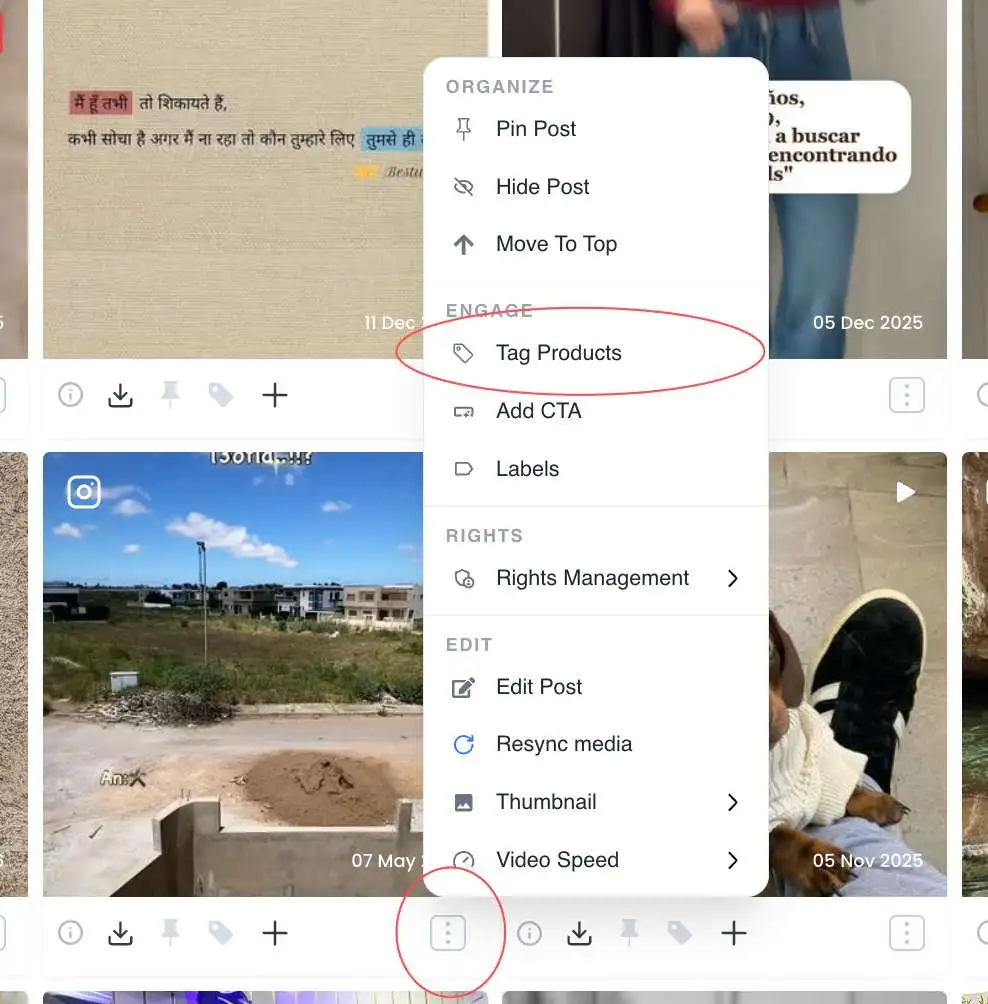
Tag Products option under the Engage section of the post menu - Choose Video Hotspot Tagging. In the Tag a product dialog, pick Video Hotspot Tagging: "Pause at a moment, click a position on the video, and tag a product — it appears as a hotspot for 3 seconds during playback."
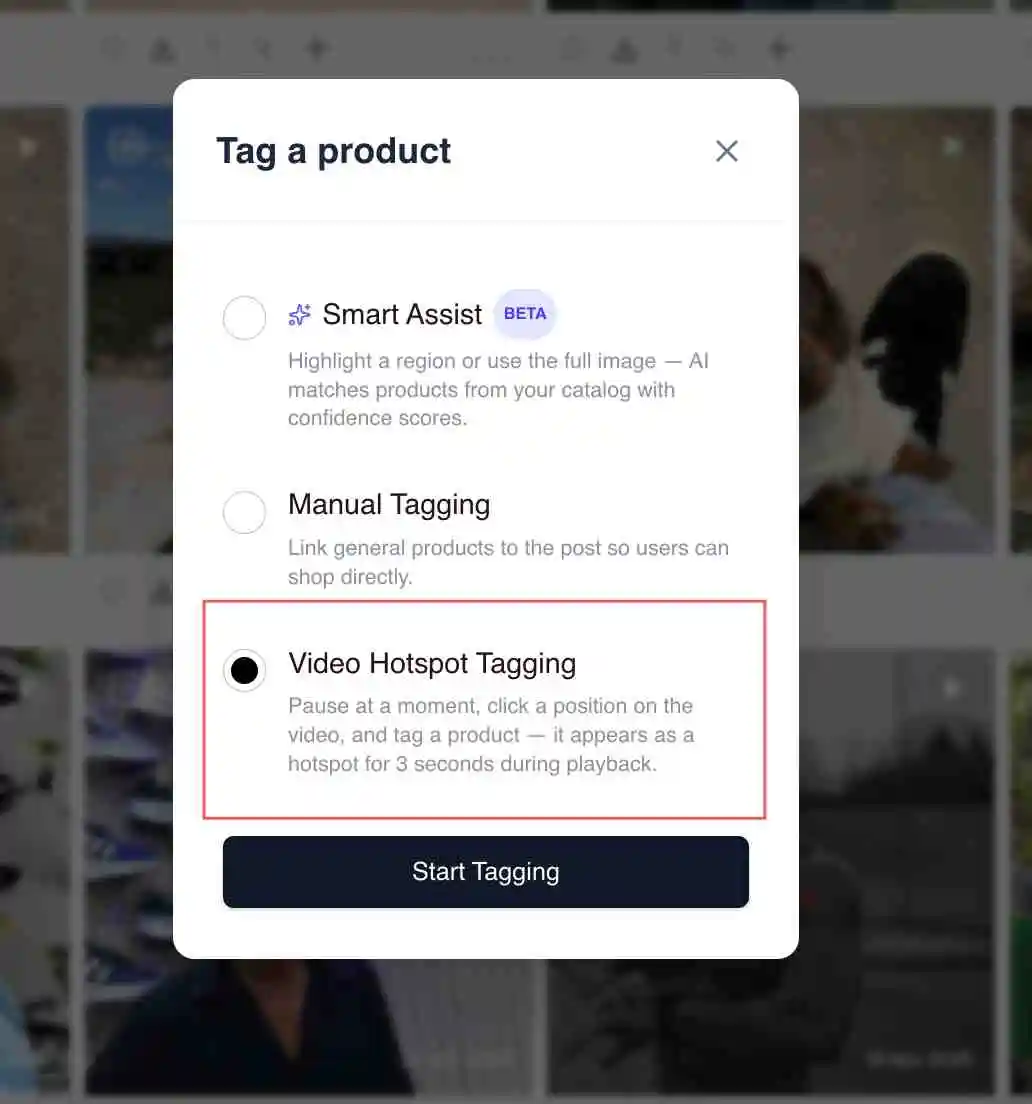
Video Hotspot Tagging option in the Tag a product dialog - Pause at the moment. Scrub or pause the video at the frame where the product is clearly visible.
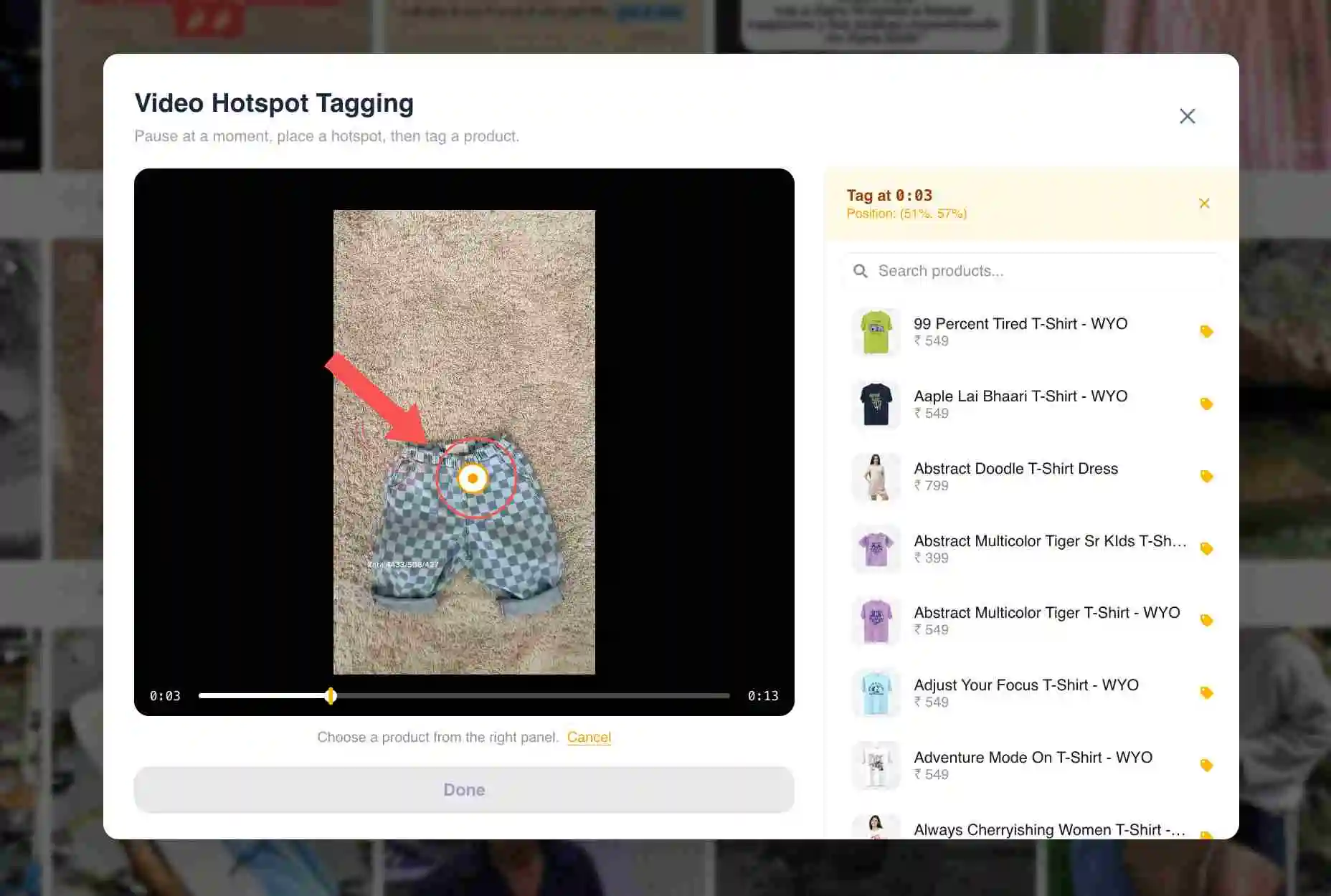
Video paused at the frame where a product appears - Click a position and tag the product. Click where the product is on the frame, then search your catalogue and attach the product to that point in time.
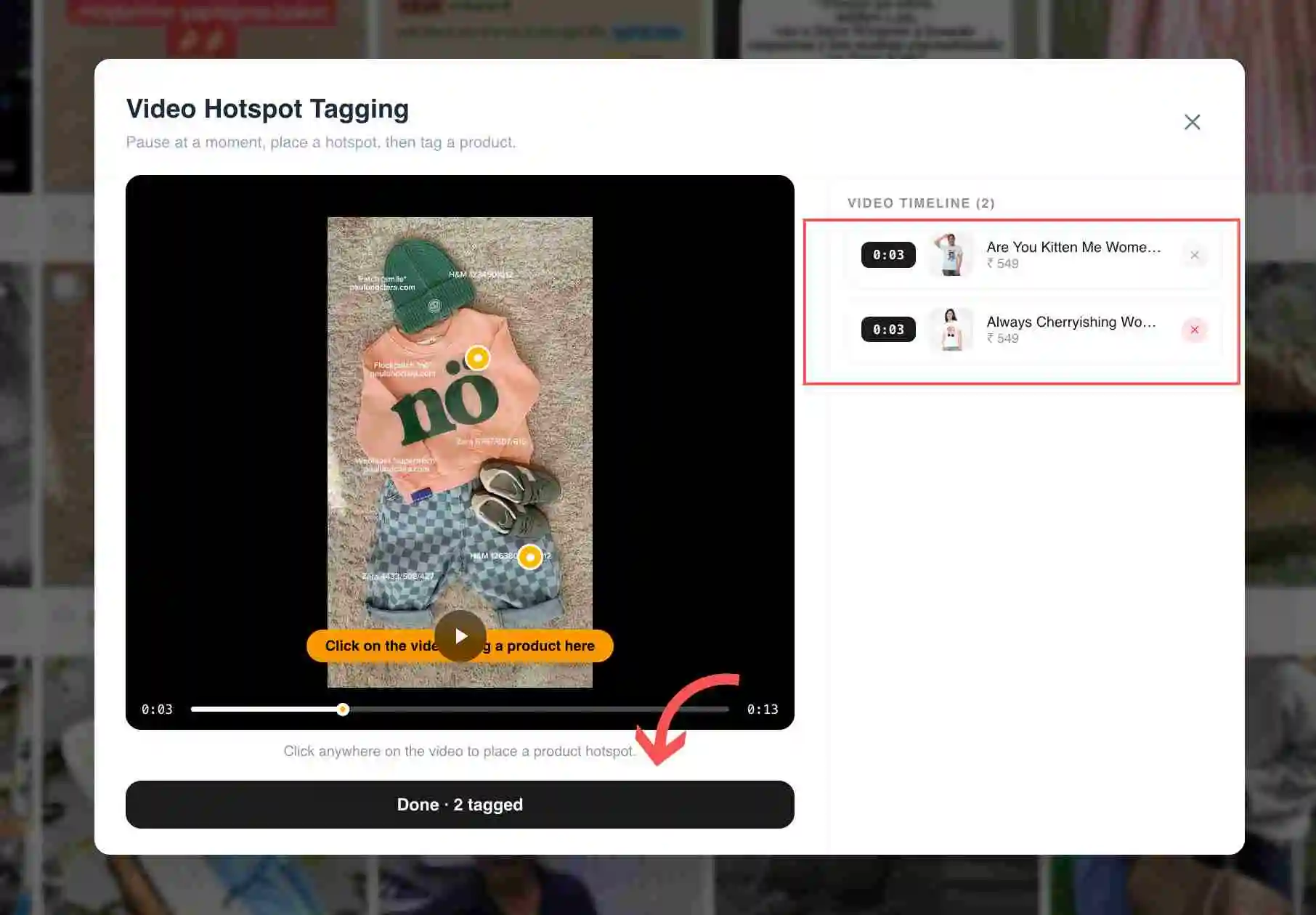
Clicking a position on the video frame to place a timed product hotspot - Repeat and save. Add more timed hotspots for other products or other moments, then save. Each tag surfaces as a hotspot for a few seconds around its timestamp.
Video hotspots vs image hotspots
Image Hotspot Tagging places a pin at a fixed spot on a still photo; the marker is always there. Video Hotspot Tagging is tied to a moment: the hotspot appears only around the timestamp you set, then fades, so you can tag different products as the video plays. For tagging that applies to the whole post rather than a point, use Manual Tagging.
Common issues
If Video Hotspot Tagging is not in the dialog, the post may not be a video or the mode may not be enabled on your account; use Manual Tagging to link products to the whole video instead. If a hotspot lands at the wrong moment, re-open tagging, pause at the correct frame and re-place it.
Related guides
- Add product links and hotspots (image): /help/add-product-links-and-hotspots
- Tag products manually: /help/manual-product-tagging
- Set up shoppable video: /help/shoppable-video-setup


