
Pinning fixes a post to the top of your widget so it always shows first, no matter how the rest is sorted. Use it for a hero video, a launch post, or your single best piece of social proof.
Pin a post
- Open the post’s menu. In the collection grid, click the three-dot actions menu on the post you want to pin.
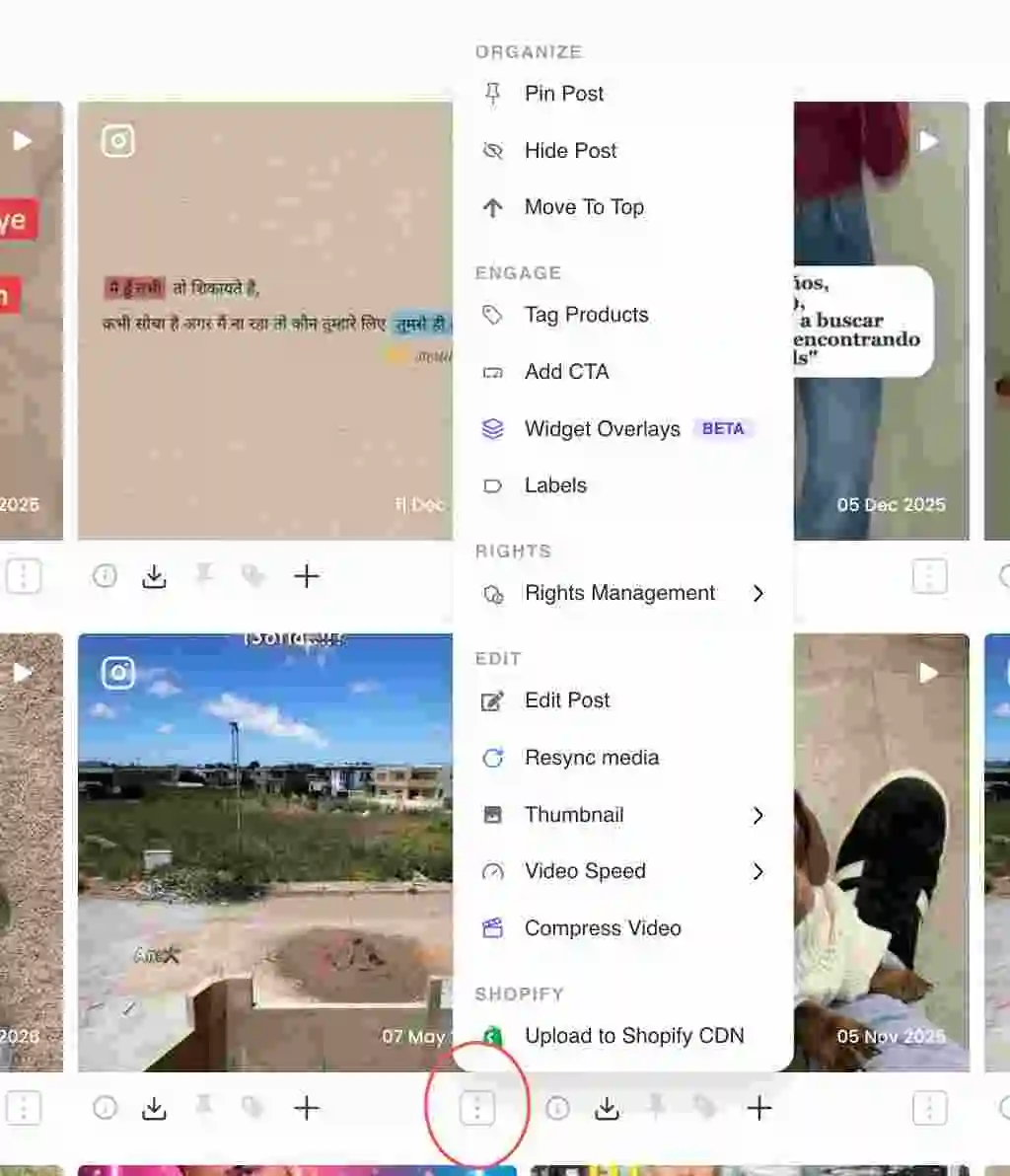
Three-dot actions menu on a post card - Choose Pin Post. Under the Organize section, click Pin Post. A pinned post shows a filled pin icon so you can spot it at a glance.
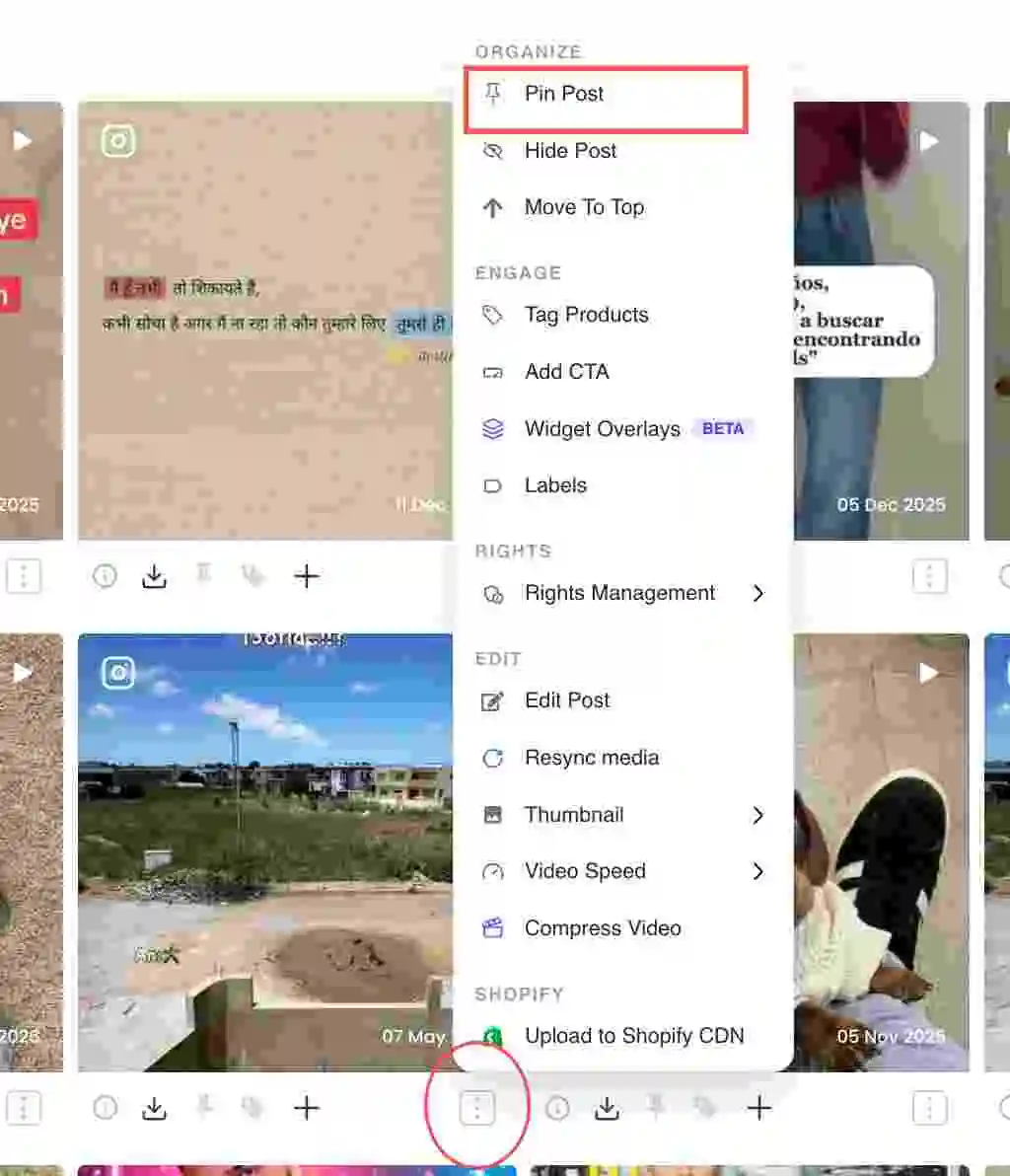
Pin Post option under the Organize section of the post menu - Confirm it leads the widget. Pinned posts sit at the top of the widget ahead of unpinned ones. Pin as many as you need; their order among themselves can be set with the pinned-order tool.
- Unpin when you’re done. To remove a pin, open the same menu and click Unpin Post.
Common questions
- How many posts can I pin?
- You can pin more than one. Pinned posts all sit ahead of unpinned ones, and you control the order among them with the pinned-order tool.
- Why is Pin Post greyed out?
- Pinning can be limited by plan. If the option is locked, it is not available on your current plan.
Related guides
- Reorder posts in a collection: /help/reorder-posts
- Feature a post: /help/feature-a-post
- Hide or remove a post: /help/hide-or-remove-a-post


