
Hiding takes a post off your live widget while keeping it in the collection, so you can bring it back later. It is the safe way to remove something off-brand, low quality or out of stock without losing it.
Hide a post
- Open the post’s menu. Click the three-dot actions menu on the post you want to take down.
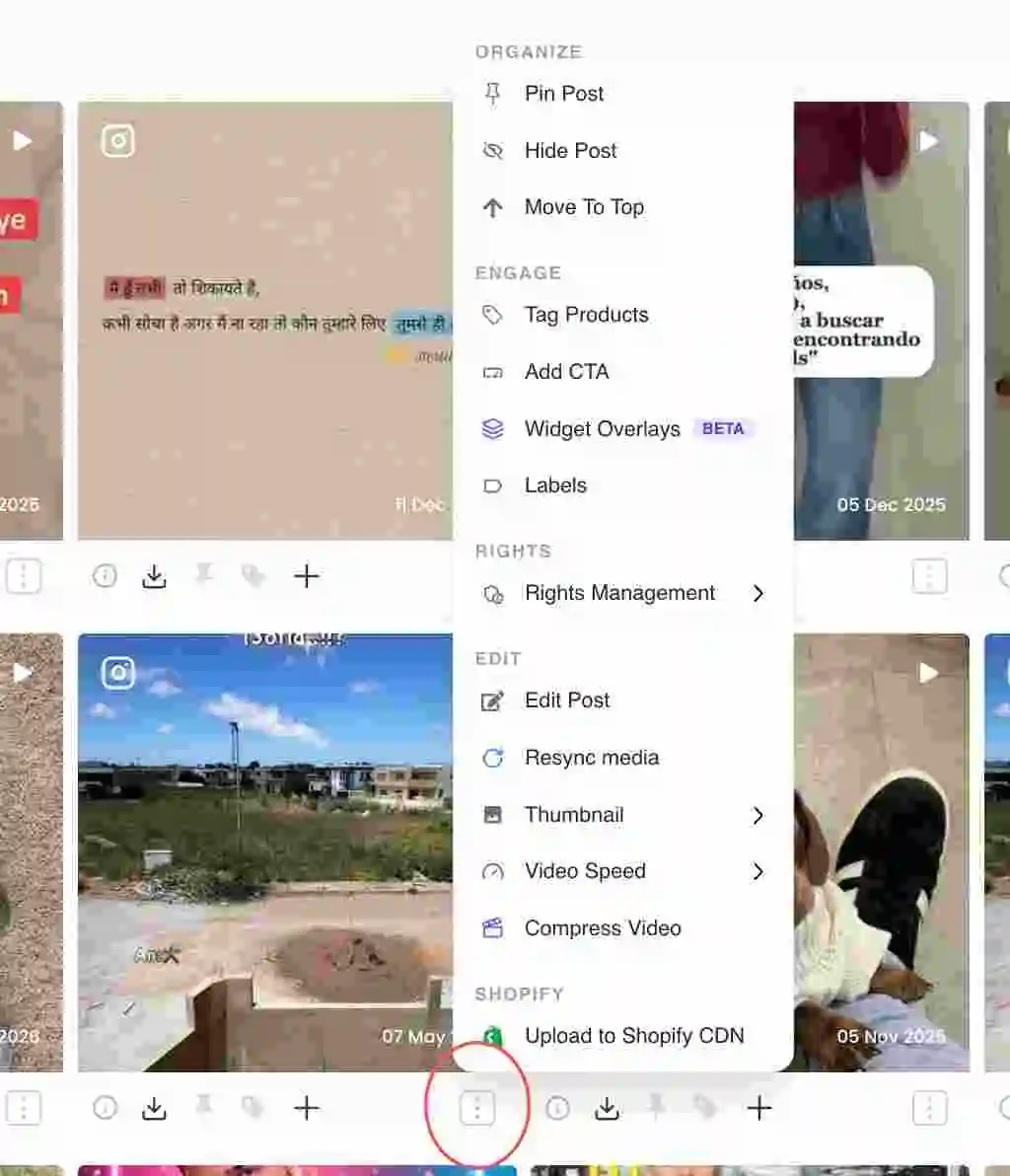
Three-dot actions menu on a post card - Choose Hide Post. Under the Organize section, click Hide Post. The post is removed from the live widget but stays in the collection.
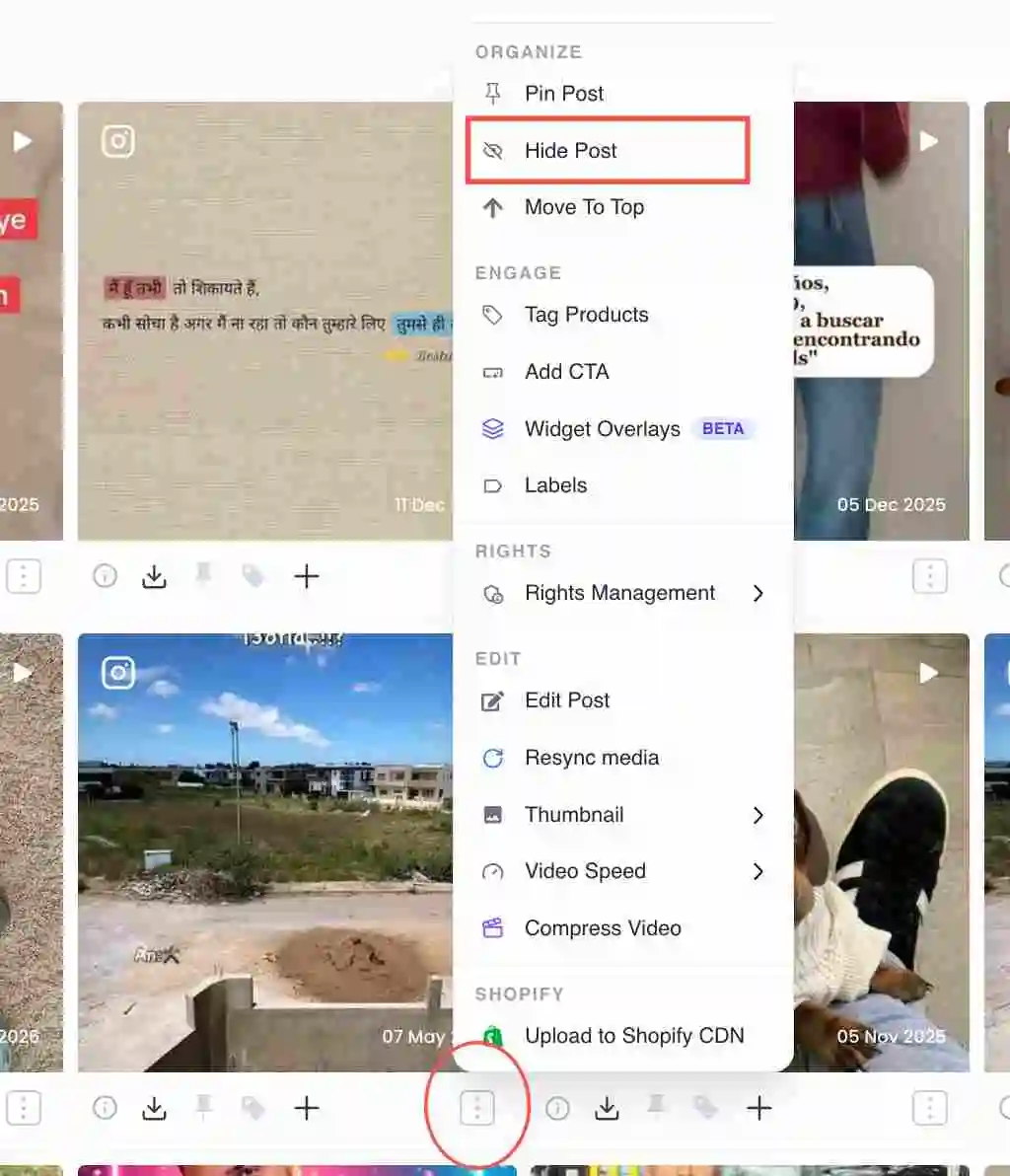
Hide Post option under the Organize section - Show it again when ready. To bring it back, open the same menu and click Show Post.
Hiding individual carousel slides
For a carousel (multi-image) post, choosing Hide opens a slide manager instead of hiding the whole post, so you can hide just the weak slides and keep the strong ones. The menu shows a count of how many slides are hidden.
Reviewing what you’ve hidden
Filter the collection to Hidden posts to see everything currently off the widget, and to Visible posts to see what is live. This makes it easy to audit and restore.
Common questions
- Does hiding delete the post?
- No. Hiding only removes it from the live widget. It stays in the collection and you can show it again at any time.
- Why is Hide Post greyed out?
- Hiding can be limited by plan. If the option is locked, it is not available on your current plan.
Related guides
- Pin a post to the top: /help/pin-a-post
- Reorder posts in a collection: /help/reorder-posts
- Approve content and manage rights: /help/approve-content-rights


